
Your website might look beautiful. However, if it loads slowly, shifts around while loading, or responds sluggishly to user clicks, Google will actively push it down in search rankings.
In 2024, Google made Core Web Vitals a confirmed ranking factor. This means your site’s loading speed, visual stability, and interaction responsiveness directly impact where you appear in search results.
In this guide, we break down exactly what Core Web Vitals are, what causes poor scores, and the precise steps to fix LCP, CLS, and INP on a WordPress website.
What Are Core Web Vitals?
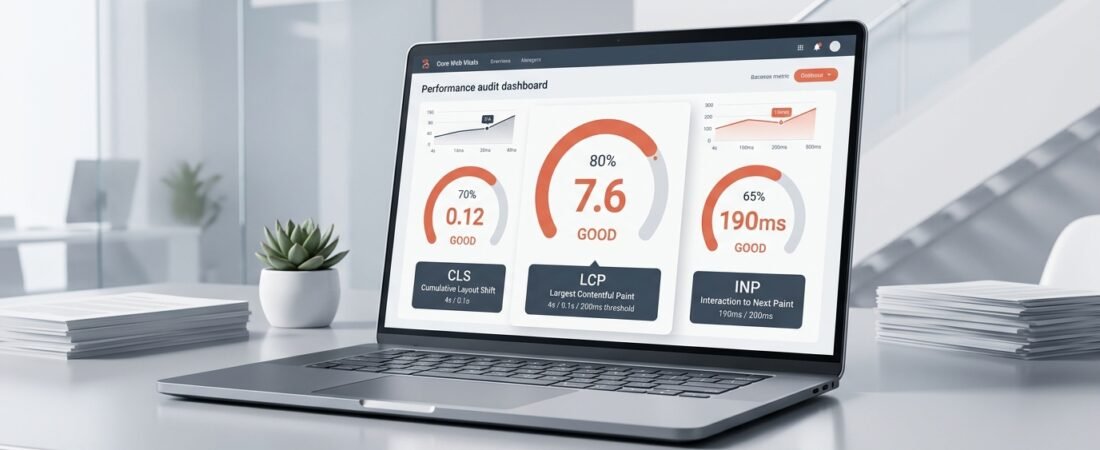
Core Web Vitals are a set of three real-world performance metrics that Google uses to measure user experience on the web:
| Metric | What It Measures | Good Score |
|---|---|---|
| LCP (Largest Contentful Paint) | How fast your largest visible element loads | Under 2.5 seconds |
| CLS (Cumulative Layout Shift) | How much the page shifts visually while loading | Under 0.1 |
| INP (Interaction to Next Paint) | How fast the page responds to user clicks | Under 200ms |
Poor scores across these three metrics directly reduce your chances of ranking on page one. If you want to understand how performance fits into a complete digital marketing strategy, explore our SEO and digital marketing services.
1. How to Fix LCP (Largest Contentful Paint)
LCP measures how fast your main hero image, banner, or headline text loads. A slow LCP is the most common Core Web Vitals failure on WordPress sites.
What causes a slow LCP?
- Large, uncompressed hero images (PNG or JPEG files above 200KB)
- Render-blocking JavaScript and CSS files loading before the page paints
- No browser caching configured
- Slow server response time (TTFB above 600ms)
How to fix LCP on WordPress
Step 1 — Convert images to WebP format.
WebP images are typically 30–50% smaller than JPEG equivalents. Upload all hero images, banners, and featured blog images in WebP format. Modern Hostinger servers support WebP natively.
Step 2 — Add fetchpriority="high" to your hero image.
This tells the browser to prioritize loading the most important image before anything else. In Elementor, add this as a custom HTML attribute to your hero image widget.
Step 3 — Defer non-critical scripts.
Scripts like chat widgets, analytics, and social embeds should load after the main page content. Our WordPress performance optimization setup defers these automatically using the techniqco-seo-optimizer.php plugin.
Step 4 — Enable server-side caching on Hostinger.
In your Hostinger hPanel, navigate to WordPress > WordPress Speed Optimization and enable LiteSpeed Cache. This reduces your TTFB dramatically.
2. How to Fix CLS (Cumulative Layout Shift)
CLS measures how much your page visually jumps around while loading. A score above 0.1 means elements are moving after a user starts reading, which creates a frustrating experience.
What causes a high CLS score?
- Images loaded without defined width and height attributes
- Web fonts loading and replacing fallback fonts (FOUT — Flash of Unstyled Text)
- Dynamic content (ad banners, cookie popups) injecting above existing content
How to fix CLS on WordPress
Step 1 — Always define image dimensions.
Every <img> tag must have explicit width and height attributes. This tells the browser to reserve space for the image before it loads. In Elementor, set a fixed width and height on every image widget.
Step 2 — Preload your web fonts.
Add the following code to your theme’s <head> to preload Google Fonts before the browser paints the page:
<link rel="preload" href="https://fonts.googleapis.com/css2?family=Inter:wght@400;600;700" as="style" onload="this.rel='stylesheet'">Step 3 — Move popups and banners below the fold.
Cookie consent banners and newsletter popups should animate in from the bottom of the screen, not the top. Injecting content above existing text forces a layout shift.
3. How to Fix INP (Interaction to Next Paint)
INP replaced FID (First Input Delay) as an official Core Web Vital in March 2024. It measures how quickly your page responds to every user interaction — clicks, taps, and keyboard inputs.
What causes a poor INP score?
- Heavy JavaScript execution blocking the browser’s main thread
- Elementor’s large JavaScript bundles running on page load
- Third-party scripts (chat widgets, ad scripts) competing for CPU resources
How to fix INP on WordPress
Step 1 — Delay non-critical third-party scripts.
Scripts like Tawk.to (live chat), Google Ads pixels, and Facebook tracking should load only after user interaction. The techniqco-seo-optimizer plugin handles this using WordPress’s wp_enqueue_scripts hook.
Step 2 — Remove unused Gutenberg CSS.
Since TechniqCo uses Elementor, the Gutenberg block library stylesheet (wp-block-library) adds unnecessary CSS weight. Our optimizer plugin dequeues this automatically on the homepage to free up browser parsing time.
Step 3 — Enable Elementor lazy loading for background images.
In Elementor → Settings → Advanced, ensure “Lazy Load Background Images” is enabled. This prevents off-screen container backgrounds from blocking the main thread.
How to Measure Your Core Web Vitals Score
After applying these fixes, always verify your improvements using the following free tools:
- Google PageSpeed Insights: pagespeed.web.dev — Run separate tests for mobile and desktop.
- Google Search Console: Navigate to Experience → Core Web Vitals to see real user data across all pages.
- GTmetrix: Provides a waterfall chart to visually identify which specific assets are causing slowdowns.
Need Expert WordPress Performance Help?
Optimizing Core Web Vitals requires deep technical knowledge across PHP, JavaScript, server configurations, and Elementor architecture. It is not something to guess at.
At TechniqCo, we audit and rebuild WordPress site performance from the ground up, delivering fast, optimized websites that rank higher and convert better.
Related reading:
- Top 5 AI Tools That Replace $5,000 of Software
- How to Generate Leads on Meta Ads
- What is SEO and How It Creates a Trillion Dollar Industry
Ready to speed up your website and improve your Google rankings? Book a free performance audit with TechniqCo today.
Related posts:
 How to Do a Website Audit: A Complete Step-by-Step Guide for 2026
 The Ultimate On-Page SEO Checklist 2026: 47 Points to Rank #1 on Google
 How To Generate Leads On Meta? Follow These Steps, Proven Methods!
 How to Optimize Your Google Business Profile: The Complete 2026 Guide for Local Visibility
 SEO for Travel Website: How To Generate Quality Leads Through Website Traffic
 The Complete Checklist for SEO, GEO, and AEO: Dominating Search in the AI Era