
Written by Trivender Singh
Co-Founder at TechniqCo | GEO and AEO Expert specializing in Generative Engine Optimization, Answer Engine Optimization, AI Search Visibility, Technical SEO and Business Growth Scaling.
Updated: October 2026 | TechniqCo AI and Performance Marketing Research
Video has become the primary medium for business communication. From software walkthroughs and client pitch decks to social media ads and internal training modules, marketing teams face a persistent challenge: traditional video editing is resource-intensive, technically complex, and slow to produce.
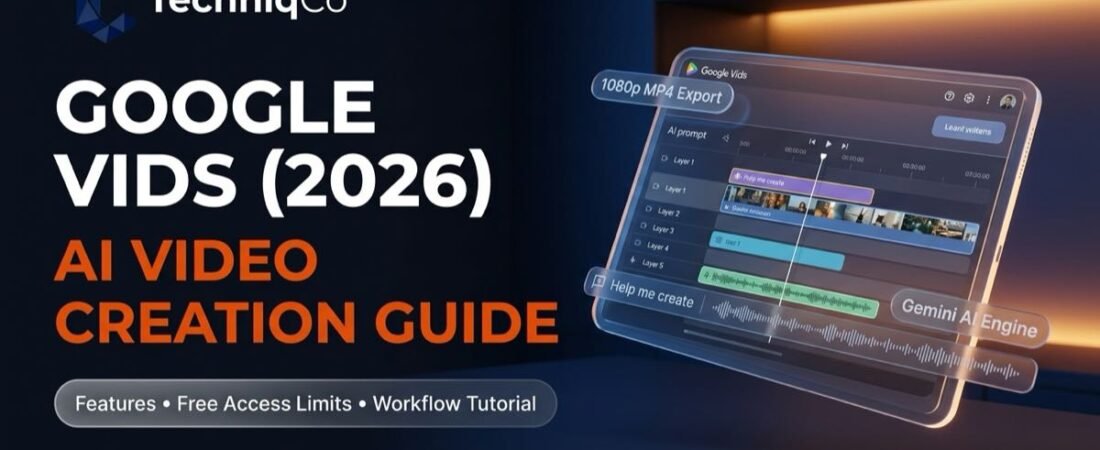
Google addressed this operational bottleneck by introducing Google Vids, an AI-powered video creation and editing application integrated directly into Google Workspace alongside Docs, Sheets, and Slides. Powered by Google Gemini models, Google Vids is designed to convert written prompts, documents, presentations, and audio recordings into complete video presentations.
Quick Summary: Google Vids at a Glance
Google Vids is a cloud-based video creation canvas for work that combines AI storyboard drafting, stock assets, screen and webcam recording, and timeline editing. Full video projects export in 1080p Full HD (1920×1080) in MP4 container format. AI-generated video clips are documented in landscape (16:9) and portrait (9:16) at 24 fps, rendering at 720p in standard workflows, with select documentation noting 1080p support. Basic editing features are available to users with a standard Google Account. Personal Google Accounts receive a shared allowance of six AI video clips and AI avatars per month, plus 50 monthly credits for eligible features such as AI storyboarding and voiceovers. Higher monthly allowances require eligible Google AI plans or Google Workspace editions.
Official references: Get started with Google Vids and export videos, Generate AI video clips in Google Vids, and Google Vids feature availability and account limits.
What Is Google Vids? Architecture and Core Capabilities
Google Vids is built as a cloud-native, collaborative video editor. Rather than adopting the steep learning curves of traditional timeline suites like Adobe Premiere Pro or DaVinci Resolve, Google Vids applies the familiar presentation canvas of Google Slides to motion video.
Projects can be started instantly by navigating to vids.new in any modern browser or by creating a new Vids file from Google Drive. Multiple team members can write scripts, adjust visual layers, leave comments, and revise scenes simultaneously in real time.
Core Creation Pipeline
1. Context Ingestion
Users supply a natural language prompt or reference an existing Google Doc, Google Slides presentation, or PDF stored in Google Drive via @ mention.
2. Gemini AI Structuring
Gemini processes the source context to draft a multi-scene storyboard outline, narration script, and recommended visual media placeholders.
3. Synchronized Canvas Editing
Creators refine timeline layers on a point-in-time synchronized canvas, inserting webcam recordings, screen captures, custom branding, and audio tracks.
4. Cloud Rendering and Distribution
The project compiles into a clean 1080p MP4 file, auto-saves to Google Drive, or exports directly to YouTube with default private visibility.
Documented Platform Capabilities
- “Help Me Create” AI Video Planning: Prompts can analyze text inputs or linked Google Docs and Slides to draft complete storyboards, as explained in Plan a video with AI in Google Vids.
- Point-in-Time Synchronized Canvas: Every scene acts as an independent canvas with discrete text, shapes, stock video, screen captures, and audio tracks.
- AI-Generated Video Clips: Generate custom video clips from descriptive prompts. Output specifications are documented at 720p in standard workflows (with select documentation noting 1080p), running at 24 fps in landscape (16:9) or portrait (9:16).
- Recording Studio with Teleprompter: Record your screen, webcam, or both simultaneously with an integrated teleprompter that scrolls speech text at your preferred pace.
- AI Voiceover Profiles: Choose from natural AI voice personas across multiple languages, accents, and tones.
- Auto Closed Captions and Transcript Editing: Spoken dialogue is transcribed automatically into synchronized captions, allowing scene trimming directly through transcript text.
- Stock Asset Library: Search and place royalty-free stock footage, photos, stickers, and background music directly within the Workspace environment.
Can You Use Google Vids for Free AI Video Generation?
A common question among creators and business owners is whether Google Vids functions as a free AI video generator. The answer is nuanced: basic editing access is available for Google Account holders, and Google provides a limited introductory allowance of AI features rather than an outright paywall or completely unlimited free generation.
According to official documentation in Google Vids feature availability and account limits, access is structured across account tiers:
| Access Tier | Timeline Canvas & Recording | AI Video Generation & Limits |
|---|---|---|
| Personal Google Accounts (Free) | Full timeline canvas editing, screen and webcam recording, templates, stock media, and 1080p MP4 exports. | Personal Google Accounts receive a shared allowance of six AI video clips and AI avatars per month, plus 50 monthly credits for eligible features such as AI storyboarding and voiceovers. |
| Eligible Google Workspace Plans | Full timeline canvas editing, screen and webcam recording, templates, stock media, and 1080p MP4 exports. | Allowances defined by plan allocations, often measured in video seconds (e.g., 200 or 500 seconds/month depending on plan), resetting on the first of each month. |
| Individual Google AI Plans | Full timeline canvas editing, screen and webcam recording, templates, stock media, and 1080p MP4 exports. | Expanded monthly generative video allowances and Gemini model capabilities based on the active subscription tier. |
What You Can Do with a Personal Google Account
Google allows users with standard personal Google accounts to access Google Vids without an upfront subscription. At this tier, users receive full access to the timeline editor canvas, recording studio, templates, and 1080p MP4 exports. Crucially, Personal Google Accounts receive a shared allowance of six AI video clips and AI avatars per month, plus 50 monthly credits for eligible features such as AI storyboarding and voiceovers.
What Requires an Eligible Paid Plan
AI video generation limits depend on your account and subscription. Google lists monthly allowances in video seconds for many eligible plans, while personal Google Accounts have a shared allowance of six AI video clips and avatars. Check Google’s current feature availability table before choosing a plan.
For organizations requiring regular, high-volume production, paid tiers offer higher monthly allocations (such as 200 or 500 seconds of generative video per month on specific Workspace tiers) and enterprise administration through the Google Admin console. Note that having storyboard access does not imply unlimited generation of video clips or synthetic avatars.
Google Vids Pricing, Plans and Eligibility
To understand access to advanced generative capabilities in Google Vids, organizations must examine Google’s distinct plan categories: Google AI plans for individual users and Google Workspace editions for teams.
1. Google AI Plans (Individual Users and Prosumers)
For individuals, freelancers, and consultants using personal Google accounts, access to expanded Gemini features is provided through Google AI plans. The primary consumer subscription is the Google One AI Premium plan, listed at $19.99 USD per month in the United States. It provides access to Gemini Advanced, expanded generation limits for AI video clips and AI avatars in Google Vids, and 2 TB of cloud storage. Regional pricing, currency conversion, and applicable local taxes vary by country; users should verify current local rates directly on Google’s official plans portal (pricing verified as of October 2026).
2. Google Workspace Editions (Teams and Enterprises)
For businesses, non-profits, and educational institutions, Google Vids is integrated directly into Google Workspace editions. As detailed in Google Vids feature availability and account limits, availability and quotas differ across tiers:
- Business Starter, Standard, and Plus: Each edition carries specific quotas for generative features, with limits frequently tracked in total video seconds per month.
- Enterprise Editions: Enterprise Starter, Enterprise Standard, and Enterprise Plus include organizational data protections where customer data is not used to train public foundation models without explicit permission.
- Education & Nonprofits: Eligible Google Workspace for Education and Nonprofit tiers receive tailored access based on administrative settings.
- Admin Management: Google Workspace administrators control whether Vids is enabled across their organization via the Google Admin console under Apps > Google Workspace > Drive and Docs.
Technical Specifications: Resolution, Formats and Canvas Controls
Understanding the precise technical parameters of Google Vids is essential before planning client deliverables or marketing assets. Official documentation from Get started with Google Vids and export videos and Generate AI video clips in Google Vids establishes the platform’s core specifications:
| Parameter | Official Specification | Marketing & Production Context |
|---|---|---|
| Project Export Resolution | 1080p Full HD (1920×1080) | Clean high-definition output suitable for YouTube, LinkedIn, website landing pages, and desktop viewing. |
| AI-Generated Video Clips | 720p in documented standard workflow; some documentation also lists 1080p support. | Confirm the available resolution in the user’s account and generation workflow. Documented at 24 fps in landscape (16:9) or portrait (9:16). |
| Project Canvas Formats | 16:9 Widescreen, 9:16 Vertical, 1:1 Square | The editor canvas accommodates horizontal presentations, mobile-first feeds, and square social placements. |
| Export Formats | MP4 (.mp4), Animated GIF (.gif) | Universal compatibility across all modern web browsers, ad servers, and video hosting platforms. |
| Maximum Project Length | Up to 30 minutes | Sufficient for long-form tutorials, detailed product demonstrations, and corporate onboarding modules. |
| Audio Object Capacity | Up to 50 audio objects per project | Accommodates multi-scene narration, background music tracks, and scene-specific sound effects. |
| Audio Balancing | Automated audio ducking | Automatically lowers background music levels during spoken narration or AI voiceover playback. |
| Direct Publishing | Export directly to YouTube | Uploads project directly to the user’s default YouTube channel, set to Private visibility by default for review. |
Google Vids Tutorial: Step-by-Step Creation Workflow
This tutorial outlines the standard production workflow for creating a business video in Google Vids, based on official platform documentation.
- Launch a New Project: Open Google Chrome and navigate to
vids.new, or open Google Drive, click New > More > Google Vids. A blank canvas opens, presenting options to start from scratch, select a template, or launch the AI assistant. - Use “Help Me Create” to Draft a Storyboard: Click Help me create to open the Gemini prompt window. Enter a clear prompt outlining the goal, audience, tone, and key points. Type
@followed by the name of a file in your Google Drive (such as a product brief in Google Docs or an existing pitch deck in Google Slides) to structure scenes around your source document, as explained in Plan a video with AI in Google Vids. - Review and Refine Storyboard Tiles: Gemini generates a structured storyboard outline divided into discrete scenes. Reorder scenes by dragging tiles horizontally, remove unwanted scenes, add new talking points, or edit the draft script text directly on each card.
- Choose a Design Theme: Select a visual style from the theme selector. Choosing a theme applies coordinated typography pairings, brand color palettes, and transition presets across all scenes in your project.
- Edit Canvas Layers and Visual Media: Click Create video to populate the full multi-track timeline editor. Double-click text blocks to adjust typography, search Google’s library of stock video clips and photos, or use the AI video generator to insert custom generative clips into your scene container, as documented in Generate AI video clips in Google Vids.
- Add Narration (AI Voiceover or Studio Recording): Choose an AI voice profile to read your scene script aloud, or click the Record icon to launch the built-in studio. Enable your webcam, microphone, or screen share, and activate the built-in teleprompter to deliver your script smoothly.
- Configure Audio and Export: Add background music from the audio library or generate an AI music track matching the desired tone. Ensure automatic audio balancing is active so music automatically dips beneath speech. Once complete, click File > Download and select MP4 video to save a 1080p file, or choose Export to YouTube to publish directly to your channel as a private video, following Get started with Google Vids and export videos.
Comparison: Google Vids vs Standalone AI Video Tools
Businesses evaluating AI video creation tools have several alternatives, each built for different production priorities. Below is a market comparison of Google Vids and four popular platforms based on publicly available documentation. Because free-tier credit allowances, resolutions, watermarks, and commercial terms vary by region, plan updates, and generative model, consult each provider’s official pricing page before finalizing a production pipeline:
| Platform | Free-Tier Access Model | Export Resolution on Free Tier | Watermark Status | Licensing & Commercial Caveats |
|---|---|---|---|---|
| Google Vids | Basic canvas free; shared allowance of 6 AI clips/avatars and 50 credits on personal accounts. | 1080p MP4 project export (AI clips in 720p/1080p workflows). | No watermark on standard export. | Covered under applicable Google Workspace or Google Terms of Service. Check Feature Availability. |
| CapCut | Desktop and web timeline editor with free editing tools. | Up to 1080p export on standard desktop/web cuts. | Clean export on standard cuts; select Pro assets watermarked. | Stock music and sound effects in the free tier are restricted to non-commercial personal use. Check CapCut Terms. |
| InVideo AI | Limited trial generation credits based on current promotional terms. | Generally restricted to 720p on free trial tiers. | Prominent InVideo watermark on free exports. | Commercial rights unlock upon subscribing to paid plans. Check InVideo Pricing. |
| Kling AI | Credit-based system with periodic daily check-in allowances. | Standard generation modes render at 720p. | Minimal or clean export on basic modes; queues deprioritized. | Commercial deployment typically requires upgraded subscription tiers. Check Kling AI Terms. |
| Runway | One-time non-replenishing trial credit grant for new accounts. | 720p export on standard free trial models. | Visible Runway watermark on trial exports. | Commercial use requires paid Standard, Pro, or Unlimited plans. Check Runway Pricing. |
Note: Specifications, credit allowances, and commercial licensing terms verified against official provider documentation in October 2026; subject to change by platform providers.
Practical Applications: How Businesses Can Use Google Vids
Google Vids is not intended to replace high-end cinema production software. Instead, its primary value lies in accelerating internal and external business communication:
| Marketing & Sales Enablement | Internal Operations & Training | Social & Short-Form Content |
|---|---|---|
| Turn pitch decks into concise, narrated video walkthroughs | Record screen-based standard operating procedures (SOPs) | Reformat blog articles into 9:16 vertical short-form video |
| Create product feature update teasers for prospects | Produce self-paced employee onboarding modules | Create snackable video summaries for LinkedIn |
| Convert written client case studies into visual recaps | Build compliance training and executive memos | Produce product explainers for YouTube Shorts |
1. B2B Sales Enablement and Pitch Decks
Sales and marketing teams frequently share 30-slide PDF presentations that prospects rarely read in full. With Google Vids, teams can import existing Google Slides, let Gemini draft concise narration, and export a 2-minute video walkthrough that prospects can watch before a consultation call.
2. Standard Operating Procedures (SOPs) and Employee Training
For fast-scaling agencies and service providers, documenting workflows via written manuals often leads to low compliance. Using Google Vids, team leaders can record their screen, enable the teleprompter for clear spoken guidance, and automatically generate closed captions to produce indexed training modules stored in Google Drive.
3. Thought Leadership and Multi-Platform Social Content
By switching to the 9:16 vertical canvas, marketing teams can repurpose research articles and company announcements into vertical video explainers tailored for YouTube Shorts, LinkedIn, and Instagram Reels.
Organizations looking to automate short-form video production pipelines at scale can explore TechniqCo’s guides on building an n8n YouTube Shorts automation workflow and implementing a modern AI video automation production pipeline.
Strategic Verdict: Should Your Organization Use Google Vids?
Choose Google Vids If:
- Your organization already operates on Google Workspace and prioritizes native cloud collaboration, secure sharing permissions, and centralized administrative control.
- You produce regular internal training videos, executive updates, software walkthroughs, or client presentations.
- You want an integrated screen and webcam recording studio with an intelligent teleprompter and automatic transcript-based scene trimming.
Choose Dedicated AI Video Engines If:
- You require broadcast-grade 4K rendering or advanced motion graphics keyframing (use Adobe Premiere Pro, After Effects, or DaVinci Resolve).
- Your marketing strategy demands photorealistic generative video scenes with custom camera physics (use Runway, Kling AI, or Luma Dream Machine).
- You need a consumer-oriented mobile video editor with viral audio libraries and trending social media filters (use CapCut).
Official Documentation and Primary Sources
Use these official documentation links to verify current implementation details, quotas, and platform availability:
- Google Docs Editors Help: Google Vids Feature Availability and Account Limits
- Google Docs Editors Help: Generate AI Video Clips in Google Vids
- Google Docs Editors Help: Plan a Video with AI in Google Vids
- Google Docs Editors Help: Get Started with Google Vids and Export Videos
- Google Workspace Official Product Portal: Google Vids
- Google One Official Plans and Pricing (Google AI Plans)
Ready to Scale AI Video and Search Engine Performance?
Want to strengthen your digital marketing, GEO, and video content strategy? Explore TechniqCo’s Search Engine Optimization, Lead Generation, and Website Development services, or connect with our strategists today.
Consult TechniqCo Digital Marketing Strategists →About Trivender Singh
Trivender Singh is the Co-Founder at TechniqCo and an expert in Generative Engine Optimization (GEO), Answer Engine Optimization (AEO), technical SEO, and scalable digital marketing architectures. He specializes in designing robust search strategies and performance marketing pipelines that help modern businesses scale sustainably. Connect on LinkedIn.
Related posts:
 Gemini AI Editor for YouTube: Features, How It Works, and What Creators Need to Know in 2026
 How to Remove the Gemini Watermark from AI Images and Veo Videos (Free & Lossless in 2026)
 How to Automate YouTube Shorts with n8n: Step-by-Step AI Video Workflow (2026)
 How to Optimize AI-Generated Videos for SEO and AI Search
 AI Video Automation Workflow in 2026: From Trend Discovery to YouTube Shorts
 Gemini 4 Argon vs GPT vs Claude: What Businesses Should Know in 2026