
Written by Trivender Singh
Co-Founder at TechniqCo | GEO & AEO Expert specializing in Generative Engine Optimization, Answer Engine Optimization, AI Search Visibility, Technical SEO & Business Growth Scaling.
How do you automate YouTube Shorts with n8n?
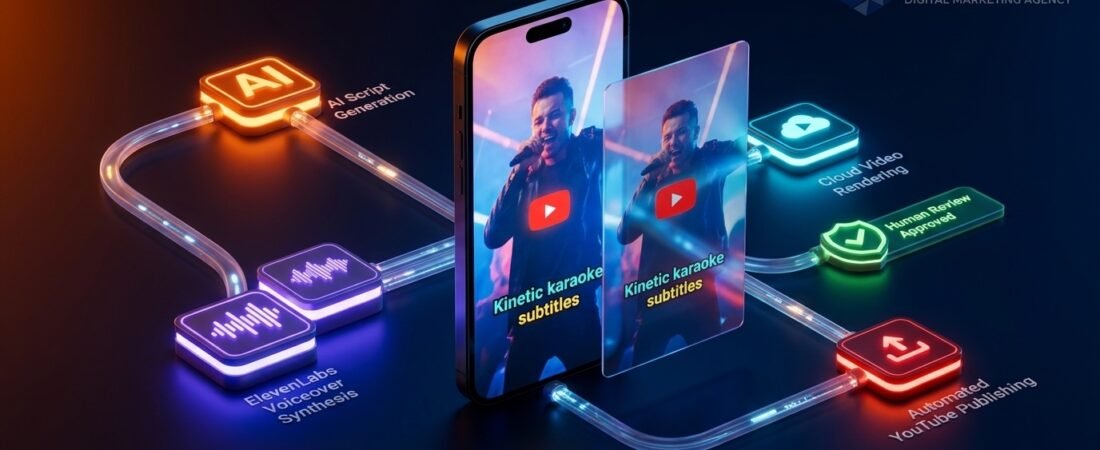
To automate YouTube Shorts with n8n, build a workflow that receives a topic, generates a script with an AI model, validates the output, creates a voiceover, renders a vertical video, and uploads the finished MP4 to YouTube using OAuth2.
A practical setup combines n8n for workflow orchestration, OpenAI or Gemini for script generation, ElevenLabs for voice synthesis, Creatomate for video rendering, and the YouTube Data API for publishing. Add a genuine human approval step before rendering or publishing to catch factual errors, improve originality, and protect your channel.
The goal is to automate repetitive production tasks without sacrificing editorial quality. The workflow described in this guide is a starter architecture that you can adapt and test before using it for live publishing.
Introduction
Producing YouTube Shorts consistently can involve much more than recording a short video. You need to research topics, write scripts, create voiceovers, assemble visuals, synchronize captions, prepare metadata, and publish each video.
These repetitive tasks can consume hours every week, especially for agencies, educators, creators, and businesses that publish frequently.
An n8n YouTube Shorts automation workflow helps connect these activities into a repeatable production pipeline. Instead of manually transferring content between tools, n8n coordinates the process and passes information from one stage to the next.
In our foundational guide to building an AI video automation workflow, we explored the broader production architecture. This tutorial focuses on implementing that architecture with n8n, an AI language model, ElevenLabs, Creatomate, and the YouTube Data API.
This is not a promise of effortless viral growth or a zero-maintenance publishing system. Automation can reduce production friction, but topic selection, fact-checking, originality, and audience understanding still require human judgment.
By the end of this guide, you will understand how to build and test a workflow that moves from a topic brief to a rendered video and a private or unlisted YouTube upload.
What Is YouTube Shorts Automation with n8n?
YouTube Shorts automation with n8n means using a workflow automation platform to coordinate the services involved in short-form video production.
Each component has a specific responsibility:
- n8n: Receives triggers, moves data between services, applies conditions, and manages workflow execution.
- AI language model: Drafts the script, hook, title, description, and other publishing metadata.
- ElevenLabs: Generates a voiceover from the approved script.
- Creatomate: Combines audio, visual assets, text, and captions into a video.
- YouTube Data API: Uploads the completed video using authorized credentials.
- Human reviewer: Checks accuracy, originality, branding, and policy-sensitive content before publication.
YouTube Shorts Automation Production Stages
End-to-end progression from trend research to verified channel publication
Topic Ideation
Google Trends, Keyword Planner, and competitive gap scoring.
Script Drafting
LLM reasoning, 3-second hook formulation, and word count gating.
Editorial Review
Fact-checking, tone alignment, policy clearance, and approval check.
Voice Synthesis
ElevenLabs TTS API, natural cadence, and curated voice identity.
Cloud Render
Creatomate v2 API, vertical 9:16 layout, and kinetic subtitles.
YouTube Distribution
YouTube Data API v3 upload, private stage, and telemetry logging.
The architecture is modular. If you later change your AI model or video-rendering service, you can replace that component without redesigning the entire production process.
What You Will Build
The tutorial follows a 14-step implementation path:
- Create an n8n workflow and trigger.
- Define structured input data.
- Generate a script and publishing metadata.
- Validate the script and apply an approval gate.
- Generate the voiceover.
- Configure a vertical video template.
- Submit a render request to Creatomate.
- Configure animated captions.
- Handle asynchronous rendering.
- Download the rendered MP4.
- Upload the video to YouTube.
- Record the outcome and prevent duplicates.
- Test the complete workflow.
- Activate and monitor production runs.
Complete n8n YouTube Shorts Automation Workflow
Production pipeline architecture with human approval gate and error handling
Initiates workflow execution on demand or on cron schedule.
Injects topic, target audience, tone, CTA, and simulated approval status.
Calls LLM Chat Completions endpoint with JSON-mode prompt.
Parses markdown code fences, checks required keys, and calculates word count.
Branches approved scripts to render; routes unapproved scripts to review log.
POSTs payload to /v2/renders and receives unique render ID.
Waits 15-25s, queries /v2/renders/{id}, and retries if in-progress.
Pulls video file from Creatomate CDN directly into n8n binary memory.
Uploads video via OAuth2 with private status, title, description, and tags.
The example targets a 45 to 55-second vertical video. This is a design choice for the tutorial, not a requirement for every YouTube Short.
Prerequisites and Tools
Before building the workflow, prepare the following accounts and resources:
| Tool | Purpose |
|---|---|
| n8n Cloud or self-hosted n8n | Workflow orchestration |
| OpenAI or Gemini API | Script generation |
| ElevenLabs | AI voiceover |
| Creatomate | Video rendering and captions |
| Google Cloud project | YouTube API access |
| YouTube channel | Destination for uploaded videos |
| Google Sheets, Airtable, or a database | Optional job tracking and approval queue |
n8n Workflow Canvas and Credentials Map
Visual guide to node positioning, secret management, and secure credentials
OpenAI or Gemini API
Header Auth (Bearer Key)
Value: Bearer YOUR_API_KEY
Used by: Script Generation Node
Creatomate Video API
Header Auth (Bearer Token)
Value: Bearer CREATOMATE_KEY
Used by: Render and Status Nodes
YouTube Data API v3
OAuth2 Credential
Scope: youtube.upload
Used by: YouTube Upload Node
Self-Hosted Docker or n8n Cloud: Configure N8N_DEFAULT_BINARY_DATA_MODE=filesystem to prevent large video payloads from consuming node process RAM during high-concurrency production runs.
For production webhooks, use an HTTPS-accessible n8n instance. Configure credentials through n8n’s credential system rather than placing API keys directly in node parameters or code.
You should also have a Creatomate template configured before attempting the complete workflow.
Step-by-Step Implementation Guide
Step 1: Create the n8n Workflow and Add a Trigger
Open n8n and create a workflow named TechniqCo - YouTube Shorts AI Automation.
For the initial build, add a Manual Trigger node. This lets you test the workflow on demand and inspect the output from individual nodes before enabling automated runs.
Once the workflow is stable, you can introduce a Schedule Trigger or a Google Sheets Trigger. For example, a spreadsheet can contain a list of video topics with columns for topic, audience, status, and approval. The workflow can process only rows that meet your defined criteria.
Before automating topic selection, use tools such as Google Trends and Keyword Planner to identify subjects relevant to your audience. You can also explore our guide on how to discover rising search trends before your competitors.
Do not automatically publish every trending topic. Relevance, factual accuracy, and brand suitability should remain part of the selection process.
Step 2: Define Structured Input Data
Add an Edit Fields (Set) node after the trigger and name it Define Structured Input. Use a structured input object like this:
{
  "topic": "How to Find High-Intent SEO Keywords Using Google Trends",
  "target_audience": "Digital marketers and SMB founders",
  "tone": "Practical, technical, authoritative",
  "call_to_action": "Visit techniqco.com for advanced SEO blueprints",
  "brand_name": "TechniqCo",
  "job_id": "SHORTS-2026-001",
  "approval_status": "NEEDS_REVIEW"
}
The job_id identifies a production job throughout the pipeline. In production, generate a unique ID for each job rather than reusing the example value.
The approval_status field starts at NEEDS_REVIEW. It should change only when your actual approval process records an editor’s decision.
For a basic technical test, you can temporarily use a static approval flag to check node connectivity. That does not constitute genuine editorial approval.
For a production workflow, use one of these approaches:
- Option A: Interactive approval: Generate the script. Send the script, title, and topic to a reviewer through email or a team messaging platform. Pause the workflow using an appropriate n8n Wait or approval mechanism. Resume only after the reviewer approves the specific job. Route rejected scripts back for revision or close the job without publishing. Protect approval links and endpoints with suitable access controls. An easily guessed or publicly accessible approval URL should not be treated as secure authorization.
- Option B: Spreadsheet approval queue: Generate the script. Save it to Google Sheets, Airtable, or a database with the status
NEEDS_REVIEW. Let an editor review and revise the content. Trigger a separate workflow when the status becomesAPPROVED. Render and upload only the approved version.
This two-stage approach makes the distinction between content creation and publication easier to audit.
Step 3: Generate the Script and Publishing Metadata
Add an HTTP Request node named Generate AI Script & Metadata.
For an OpenAI Chat Completions integration, configure the request as follows:
- Method: POST
- URL:
https://api.openai.com/v1/chat/completions - Authentication: Header authentication using an n8n credential
- Content-Type:
application/json
Use the following request body as a starting point:
{
  "model": "gpt-4o-mini",
  "messages": [
    {
      "role": "system",
      "content": "Write a useful YouTube Shorts script for the supplied topic and audience. Return a JSON object containing hook, script, on_screen_text, title, description, and tags. Aim for 110 to 130 words in the narration. Keep the script conversational, factual, and original. Do not invent statistics or citations. If a claim cannot be verified from the supplied information, flag it for review."
    },
    {
      "role": "user",
      "content": "Topic: " + $json.topic + "\nAudience: " + $json.target_audience + "\nTone: " + $json.tone + "\nCTA: " + $json.call_to_action
    }
  ],
  "response_format": { "type": "json_object" }
}
Replace the example topic and audience with expressions referencing the input fields from the previous node. Store the API credential securely in n8n.
The model should return a structured object containing:
- hook: The opening line.
- script: The narration.
- on_screen_text: A short text overlay.
- title: The proposed YouTube title.
- description: The video description.
- tags: Relevant metadata, if you choose to use tags.
A script of 110 to 130 words may suit a roughly 45 to 55-second video, depending on speaking speed, pauses, and editing. Actual rendered duration must be checked rather than inferred from word count alone.
Do not assume that a model-generated title, description, or factual claim is correct merely because the response is valid JSON.
Step 4: Validate the Script and Apply a Quality Gate
A valid API response is not necessarily a valid video script. The response could be incomplete, contain missing fields, or include factual errors.
Add a Code node named Parse & Validate Script Output. Configure it to run once for all items and use defensive parsing:
const results = [];
for (const item of $input.all()) {
  try {
    const response = item.json;
    const raw = response?.choices?.[0]?.message?.content;
    if (typeof raw !== "string") {
      throw new Error("Missing model response content");
    }
    const content = JSON.parse(
      raw.replace(/```json/gi, "").replace(/```/g, "").trim()
    );
    const required = ["hook", "script", "title", "description"];
    for (const field of required) {
      if (typeof content[field] !== "string" || !content[field].trim()) {
        throw new Error(`Missing or invalid field: ${field}`);
      }
    }
    const wordCount = content.script
      .trim()
      .split(/s+/)
      .filter(Boolean).length;
    results.push({
      json: {
        ...content,
        word_count: wordCount,
        is_valid: wordCount >= 80 && wordCount <= 160,
        error_message: null
      }
    });
  } catch (error) {
    results.push({
      json: {
        is_valid: false,
        error_message: error.message
      }
    });
  }
}
return results;
This example checks the model response structure and a broad word-count range. It does not perform a complete fact-check, verify approval, or guarantee that the final video will meet your duration target.
Next, add an If node named Human Approval & Quality Gate.
The production workflow should verify all of the following:
- The response passed structural validation.
- The script meets your chosen word-count range.
- The specific script version has been approved by an authorized reviewer.
- Required brand and factual checks have passed.
- The job has not already been published.
Route failed jobs to a logging or notification branch. Do not send rejected scripts to rendering simply because a previous test used a hardcoded approval flag.
YouTube’s monetization policies distinguish original, valuable content from repetitive or mass-produced material. AI assistance is not, by itself, a guarantee of eligibility or ineligibility.
A workflow that publishes interchangeable scripts over generic footage with minimal original value can create monetization risks. A review gate helps catch errors, but it does not automatically make repetitive content eligible.
Give each video a distinct purpose, original commentary, meaningful analysis, or a clear educational benefit. Review YouTube’s official channel monetization policies before scaling an automated publishing system.
Step 5: Generate the Voiceover with ElevenLabs
You can generate narration in either of two ways:
- Method A: Creatomate voiceover integration: If your Creatomate template supports the desired ElevenLabs integration, configure the voice element and provider settings in Creatomate. Then pass the approved script through the template’s supported dynamic modification mechanism. This reduces the number of intermediate audio files that n8n needs to manage.
- Method B: Direct ElevenLabs API integration: Alternatively, add an HTTP Request node that calls the ElevenLabs text-to-speech API (
POST https://api.elevenlabs.io/v1/text-to-speech/YOUR_VOICE_ID). If you use this method, configure the binary response and storage path correctly. If Creatomate needs a publicly accessible audio URL, upload the generated audio to an appropriate storage service rather than assuming a local n8n file can be fetched externally.
Choose a voice that fits the brand and audience. Review pronunciation of product names, technical terms, acronyms, and names before publishing.
Step 6: Configure the Creatomate Video Template
Create a vertical video template in Creatomate with a 9:16 aspect ratio and a target resolution of 1080 x 1920 pixels.
For this tutorial, the template contains five elements:
- Background video: Use a vertical video or image. Configure the media to cover the canvas. Ensure you have the rights to use the footage. Make the background dynamically replaceable if each topic requires different visuals.
- Voiceover: Add an audio or supported voice-generation element. Configure its source and provider using the method you selected in Step 5. Name the element
Voiceoverif you intend to use that name in the API modifications. - Subtitles: Add a text element configured for transcription or timed captions, using the options supported by your actual template. Select a readable font and high-contrast colors. Keep text away from the edges and the areas where YouTube’s interface displays buttons and labels.
- Hook headline: Add a text element named
Text-Hook. Place it near the upper portion of the canvas. Keep the opening hook concise and readable on mobile screens. - Topic title overlay: Add a text element named
Title-Overlay. Use it for a short supporting title or category label. Avoid displaying the same text in multiple places unless it serves a clear purpose.
Element names and dynamic properties in the Creatomate template must match the names used in your API request. A modification targeting a nonexistent element may be ignored or produce a warning. Use the actual template editor and current Creatomate documentation to confirm the supported settings for voice generation, transcript sources, subtitle animation, and text properties. Do not assume that a JSON element blueprint is a ready-to-import template unless it has been validated against Creatomate’s current schema.
Step 7: Submit the Render Request to Creatomate
Add an HTTP Request node named Request Creatomate Video Render.
Configure it as follows:
- Method: POST
- URL:
https://api.creatomate.com/v2/renders - Authentication: Header authentication using a Creatomate API credential
- Content-Type:
application/json
A template-based request can follow this structure:
{
  "template_id": "YOUR_CREATOMATE_TEMPLATE_ID",
  "modifications": {
    "Text-Hook": "YOUR_APPROVED_HOOK",
    "Voiceover": "YOUR_APPROVED_SCRIPT",
    "Title-Overlay": "YOUR_ON_SCREEN_TEXT"
  },
  "metadata": "SHORTS-2026-001"
}
In n8n, replace the example strings with expressions that reference the validated and approved fields from your workflow. The metadata field can help associate a render with a job. Use a unique job identifier for each production run.
Creatomate’s Create a Render API documentation describes the endpoint and supported request parameters.
A successful request means the render has been accepted, not that the video has finished rendering. Save the returned render ID for the next step.
Step 8: Configure Automatic Subtitles
Captions improve accessibility and help viewers follow narration when they cannot listen to audio. Animated captions can also reinforce key phrases, but they should remain readable rather than overwhelming the video.
Depending on your chosen Creatomate setup, the caption process may involve a transcript source or an audio file that is transcribed and synchronized.
Before using the template in production, verify that:
- The transcript source points to the correct audio element.
- The configured caption mode and animation properties are supported.
- Captions are synchronized with the rendered voiceover.
- Long words and punctuation are displayed correctly.
- Text remains inside safe areas on mobile devices.
- Captions do not cover important visual details.
Render a sample video and inspect the output before connecting the template to automated publishing. The exact subtitle configuration depends on the template and integration you use.
Step 9: Handle Asynchronous Rendering
Video rendering is asynchronous. The initial request may return before the MP4 is ready. Creatomate documents these render states:
planned: The job has been accepted.waiting: The job is waiting for a dependency.transcribing: Audio transcription is being processed.rendering: The video is being generated.succeeded: The render has completed.failed: The render has failed.
Read the Creatomate render-status documentation for the current response format.
Option A: Use a webhook: For a production system, a webhook is often preferable to repeatedly polling for status. When creating the render, provide a publicly accessible HTTPS webhook_url that points to an n8n Webhook node. Creatomate can send a notification when the render succeeds or fails.
Option B: Use a bounded polling loop: For testing or deployments where webhooks are not practical, use a polling loop: wait for a short interval, call GET https://api.creatomate.com/v2/renders/RENDER_ID, check status, continue waiting if in progress, and download only when succeeded. Stop after a configured retry limit and mark the job as timed out.
Step 10: Download the Rendered MP4
Once the render status is succeeded, add an HTTP Request node named Download Rendered MP4 File.
Configure it to:
- Use the render’s returned URL.
- Use the GET method.
- Return the response as a file or binary payload.
- Store the binary data under a property named
data, if that is the property expected by your upload node.
Before uploading, check that the URL exists and the binary payload was received. A missing binary property will prevent the next node from uploading the file.
Creatomate notes that rendered files are hosted for a limited period. Download or transfer any files you need to retain to storage under your control.
Step 11: Upload the Short to YouTube
Enable the YouTube Data API in your Google Cloud project and configure the required OAuth2 credentials in n8n.
Add the native YouTube node and select the video upload operation. Map the relevant fields:
- Binary Property:
data - Title: The approved title
- Description: The approved description
- Category: Choose the category appropriate for the video
- Privacy:
privateduring initial testing
Google’s quota documentation describes a granular quota system. The videos.insert method has a separate upload quota bucket with a default limit of 100 calls per day, and each call costs one unit within that bucket. Other YouTube Data API methods use their applicable quota buckets and limits.
These are API project limits, not a promise that every account or workflow can publish 100 successful videos per day. Failed requests, authorization problems, project restrictions, and additional API operations may affect your implementation.
Check the current videos.insert documentation and your Google Cloud project’s Quotas page before estimating publishing capacity. Do not hardcode quota assumptions into the workflow. Monitor actual usage and handle quota errors gracefully.
Does a Vertical Video Automatically Become a Short?
YouTube classifies eligible square or vertical videos of up to three minutes as Shorts under its current guidance. Your tutorial’s 45 to 55-second target is comfortably within that limit.
However, duration and aspect ratio alone do not guarantee that every upload will behave exactly as expected. Check the published video in YouTube Studio and verify its classification.
YouTube also warns that Shorts longer than one minute with an active Content ID claim can be blocked. Use footage, music, and other assets you have permission to use. See YouTube’s official guidance on three-minute Shorts.
Step 12: Record the Publication Outcome and Prevent Duplicates
A workflow should not simply upload a video and end. It should record what happened so that failures can be investigated and successful jobs are not accidentally repeated.
Store the following information in Google Sheets, Airtable, or a database:
job_id- Original topic
- Approved script version
- Creatomate render ID
- YouTube video ID
- Video URL
- Publication status
- Created and updated timestamps
- Error details, if applicable
After an upload succeeds, record a status such as PUBLISHED. Before starting a new render or upload, check whether the job has already been processed. Use a unique job identifier and a persistent record rather than relying on a field that exists only within one n8n execution.
Step 13: Test the Complete Workflow
Test the workflow in stages before activating it:
- Test 1: Script generation: Confirm that the model returns valid JSON, the required fields exist, and the script meets your editorial requirements.
- Test 2: Approval: Verify that an unapproved job cannot proceed to rendering. Test both approved and rejected outcomes.
- Test 3: Rendering: Submit a sample render and check that the template modifications apply correctly. Confirm that the status-check logic handles in-progress, successful, and failed renders.
- Test 4: Binary download: Confirm that the final MP4 is received as binary data under the expected property name.
- Test 5: YouTube upload: Upload privately first. Open YouTube Studio and verify the title, description, video orientation, audio, captions, and playback.
- Test 6: Failure handling: Simulate invalid script output, a rejected approval, a render failure, and a failed download. Confirm that each case produces a useful error record or notification.
- Test 7: Duplicate prevention: Run the same job twice and confirm that the workflow does not create a second upload unintentionally.
Do not enable a public publishing schedule until these checks pass.
Step 14: Activate and Monitor the Workflow
Once the tests pass, replace the manual trigger with the trigger appropriate to your production process. You could use a schedule for recurring content production or a spreadsheet trigger for an editorial queue. Start with a small number of videos and review the results before increasing volume.
Monitor these operational metrics:
- Number of jobs started and completed
- Script validation failures
- Human approval and rejection rates
- Render success and failure rates
- Average rendering time
- Upload success rate
- Duplicate job attempts
- Cost per completed video
- Time spent on manual revisions
Set alerts for repeated failures and API rate limits. Periodically review the workflow credentials, permissions, dependencies, and API changes.
Troubleshooting Common n8n YouTube Automation Errors
n8n Error Recovery and Automated Retry Logic
Failure detection branches and automated retry isolation across all nodes
Exponential Backoff
- Trigger: OpenAI or ElevenLabs HTTP 429
- Detection: HTTP status inspection
- Retry: Node
retryOnFail(3 attempts) - Backoff: 5000ms pause with jitter
v2 Bounded Polling Loop
- Trigger: Render status still transcribing or rendering
- Endpoint: api.creatomate.com/v2/renders
- Retry Count: Loop counter up to 8 iterations
- Safety: Alert team if render exceeds 120s
Daily Quota Sentinel
- Metric: 1 unit per upload in separate quota bucket
- Limit: Default 100 videos.insert calls per day
- Preservation: Cache rendered MP4 URL in database
- Resume: Automated dispatch on next calendar day
| Error or symptom | Likely cause | Recommended action |
|---|---|---|
| Invalid model response | Missing fields, malformed JSON, or an API error response | Inspect the raw response and validate the expected structure before parsing |
| Script rejected by quality gate | Failed validation or missing approval | Inspect the validation result and confirm the specific script was approved |
| Render remains in progress | Rendering or transcription is not complete | Continue bounded polling or wait for the render webhook |
| Render failed | Template, asset, provider, or modification error | Inspect the returned error details and fix the underlying issue |
| No binary data exists | Download node did not return the expected binary property | Set the response format to File and verify the binary property name |
| HTTP 429 Too Many Requests | An API rate limit has been reached | Use controlled retries and respect the applicable retry guidance |
| YouTube quota error | Upload quota or another applicable API limit has been reached | Check the Google Cloud Quotas page and handle the error without repeatedly retrying |
| Creatomate template ID invalid | Incorrect or missing template ID | Copy the correct ID from the Creatomate project |
| Video is not classified as a Short | Format, duration, or eligibility requirements are not met | Check YouTube’s current Shorts guidance and inspect the uploaded video |
How Much Does It Cost to Automate One YouTube Short?
The cost depends on the AI model, voiceover provider, rendering plan, hosting, and number of failed jobs. It also depends on whether your subscriptions include unused capacity that would otherwise go unspent.
Rather than treating a single price as universal, calculate the cost using your actual accounts:
| Cost component | How to estimate it |
|---|---|
| AI script generation | Input and output token usage multiplied by your model’s current rates |
| Voiceover | Characters generated and your provider’s applicable plan |
| Video rendering | Credits consumed per render and the effective cost of those credits |
| n8n hosting | Monthly subscription or hosting cost allocated across completed videos |
| Storage and transfer | Any applicable storage, bandwidth, and retention costs |
| Failed runs | Wasted generation, rendering, or retry costs |
A useful formula is:
Include failed attempts and recurring subscription costs if you want to understand the real operating cost of your pipeline. For example, a low marginal cost per video does not necessarily mean a low total monthly cost if you have minimum subscription fees or unused credits. Check current pricing directly with each provider before publishing a cost benchmark.
Download the n8n YouTube Shorts Workflow Starter Template
You can adapt a starter workflow with nodes for script generation, validation, render submission, bounded status checking, binary download, and YouTube upload.
This downloadable JSON template represents a starter architecture designed for local testing and demonstration. It uses simulated approval (is_approved_simulated: true) and a bounded polling loop. Before production use, readers must configure their own API credentials, Creatomate template ID, real human approval mechanism, and persistent job tracking.
Before using a starter workflow, readers must:
- Import the JSON into their n8n workspace.
- Configure their own AI API credentials.
- Configure Creatomate credentials and a valid template ID.
- Connect their own YouTube OAuth2 account.
- Replace example input values and job IDs.
- Implement genuine human approval for production use.
- Add a proper render polling loop or webhook callback.
- Add persistent job tracking and duplicate prevention.
- Test private uploads and failure handling before enabling public publishing.
Never share API keys or OAuth tokens in a downloadable workflow. Keep credentials in n8n’s credential manager.
n8n YouTube Shorts Starter Architecture Blueprint
Verified 14-node starter topology with bounded status polling and human review gate
This workflow starter template is configured for local testing with simulated approval (is_approved_simulated: true). Before running in production, connect your own API credentials, set your Creatomate template ID, and connect an external approval webhook or database queue.
{
  "name": "TechniqCo - YouTube Shorts AI Automation Starter Template (2026)",
  "nodes": [
    { "name": "When clicking 'Test workflow'", "type": "n8n-nodes-base.manualTrigger" },
    { "name": "Define Structured Input", "type": "n8n-nodes-base.set" },
    { "name": "Generate AI Script & Metadata", "type": "n8n-nodes-base.httpRequest" },
    { "name": "Parse & Validate Script Output", "type": "n8n-nodes-base.code" },
    { "name": "Quality Gate (Human Approval Check)", "type": "n8n-nodes-base.if" },
    { "name": "Submit Creatomate Render Request", "type": "n8n-nodes-base.httpRequest" },
    { "name": "Wait for Video Rendering", "type": "n8n-nodes-base.wait" },
    { "name": "Check Render Status", "type": "n8n-nodes-base.httpRequest" },
    { "name": "Evaluate Render Status", "type": "n8n-nodes-base.if" },
    { "name": "Download Rendered MP4", "type": "n8n-nodes-base.httpRequest" },
    { "name": "Upload Short to YouTube", "type": "n8n-nodes-base.youtube" },
    { "name": "Record Publication Outcome", "type": "n8n-nodes-base.set" }
  ]
}Frequently Asked Questions
Can n8n upload videos directly to YouTube?
Yes. n8n provides a YouTube integration that can upload video files when the appropriate credentials and node configuration are in place. Test uploads privately before enabling public publishing.
How do I connect Creatomate to n8n?
Use an HTTP Request node to call the Creatomate v2 render endpoint, https://api.creatomate.com/v2/renders. Authenticate with a Creatomate API key stored securely in n8n, then pass the template ID and supported dynamic modifications. Use the render ID to track completion.
Do I need to host ElevenLabs audio files separately?
Not necessarily. If your selected Creatomate integration supports generating voiceover directly from text, you may not need a separate audio-hosting step. If you generate audio directly in n8n, you may need to transfer it to accessible storage depending on the rendering configuration.
What is the YouTube Data API upload limit?
The videos.insert method has a separate default quota bucket of 100 calls per day, with a cost of one unit per call within that bucket under Google’s documented granular quota system. Limits can change, so check the official API documentation and your own Google Cloud project before estimating capacity.
How much does it cost to automate one YouTube Short?
There is no universal cost per video. It depends on your AI usage, voiceover plan, rendering credits, hosting, subscription minimums, and failed runs. Calculate the cost using current provider prices and your actual workflow usage.
Why is human approval important in an automated video workflow?
Human approval gives an editor an opportunity to check facts, originality, tone, branding, rights to use assets, and policy-sensitive material. It also helps prevent a technically successful workflow from publishing unsuitable content. Approval alone does not guarantee monetization eligibility.
How does n8n handle Creatomate rendering delays?
Creatomate rendering is asynchronous. You can use a webhook to receive completion notifications or poll the render-status endpoint until the job succeeds or fails. A production workflow should handle in-progress states, retry limits, timeouts, and error logging.
Can AI-generated or automated YouTube Shorts be monetized?
AI-assisted content can be eligible, but monetization depends on YouTube’s policies and the content itself. Repetitive, mass-produced videos with little original educational, creative, or entertainment value may be ineligible. Review the official YouTube channel monetization policies and make sure each video offers meaningful value.
Do automated YouTube Shorts have to be under 60 seconds?
No. Under YouTube’s current guidance, eligible square or vertical videos can be classified as Shorts when they are up to three minutes long. A 45 to 55-second target is simply the format used in this tutorial. Review the current Shorts eligibility requirements.
Conclusion: Build a Reliable YouTube Shorts Automation Workflow
Automating YouTube Shorts with n8n can reduce repetitive production work by connecting AI script generation, voice synthesis, video rendering, and YouTube publishing into a single workflow.
The most reliable systems do more than connect APIs. They validate inputs, require genuine approval, handle asynchronous rendering, track job status, prevent duplicate uploads, and record failures in a way that makes them easy to investigate.
Start with a small test workflow, validate each component, and keep uploads private until the complete process has been tested. Expand only when the workflow is producing useful, original content consistently.
At TechniqCo, we help businesses and agencies design practical AI automation systems, integrate content workflows, and improve their digital marketing operations.
Scale Your Video Production with Resilient Engineering
Ready to deploy robust n8n pipelines with editorial safeguards, custom database queues, and brand-safe distribution?
Consult TechniqCo Automation ArchitectsAbout Trivender Singh
Trivender Singh is the Co-Founder at TechniqCo, working across Generative Engine Optimization (GEO), Answer Engine Optimization (AEO), and digital marketing systems. His work focuses on search strategy, AI-assisted content operations, and automation workflows that help businesses improve efficiency while maintaining editorial quality. Connect with Trivender on LinkedIn.
Related posts:
 AI Video Automation Workflow in 2026: From Trend Discovery to YouTube Shorts
 Gemini AI Editor for YouTube: Features, How It Works, and What Creators Need to Know in 2026
 Gemini 4 Argon vs GPT vs Claude: What Businesses Should Know in 2026
 Google Demand Gen September 2026: Business Agent, YouTube Ads & AI Updates
 YouTube Monetization Rejected in 2026? How to Appeal, Fix Your Channel and Regain AdSense
 Dandiya Meets AI Search: How Event Organizers Can Get Discovered in 2026